


After reading this post, you should be able to override report filters using only a url instead of editing the report to add the filters. This can be useful when you want to filter a report per the current record.
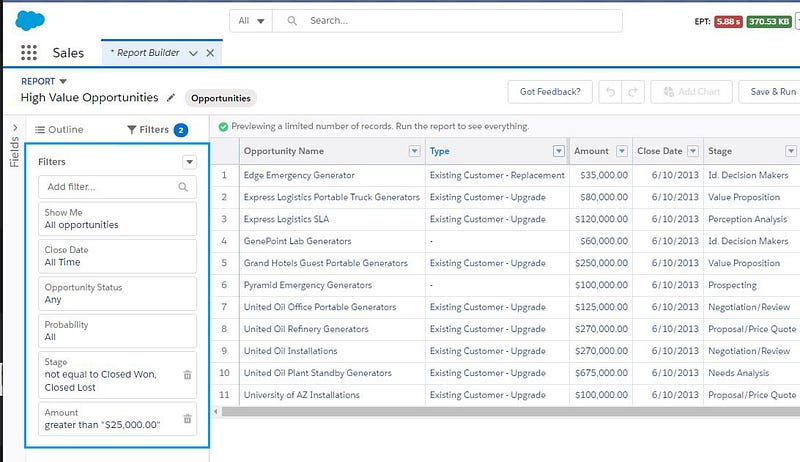
First of all, you need to create your report or use an existing one. In our example, we will grab all high value opportunities for a specified account.
Create Report
Create a report with common filters already applied to it.
Filters
Now that we have our report ready. Let’s start with the real topic, “Filtering report with URL parameters”. You only need 3 things:
- column : the column name as being used in the report
- operator : the operator name (Available values are: equals, notEqual, lessThan, greaterThan, lessOrEqual, greaterOrEqual, contains, notContain, startsWith) — these are case sensitive
- value : the filter value
Build the filters
To build the filters for use in the url, you need to have a small knowledge of JSON.
Filter example for a specific account:[{“column”:”ACCOUNT_ID”,”operator”:”equals”,”value”:”0012400000BqZuZAAV”}]
Several filters can be added by simply building another set of filter and adding it to the array of the JSON.[{“column”:”ACCOUNT_ID”,”operator”:”equals”,”value”:”0012400000BqZuZAAV”},{“column”:”AMOUNT”,”operator”:”greaterThan”,”value”:”30000″}]
Repeat it for all filters you want to have.
You can use the following website to validate that the JSON is valid: https://jsonlint.com
Assembling everything to run the report with filter directly from a URL. Just add the parameter reportFilters=<filter in json format> to your url. Below is a full example. /lightning/r/Report/<reportId>/view?reportFilters=[]https://kevan-dev-ed.lightning.force.com/lightning/r/Report/00O24000004y7vHEAQ/view?reportFilters=[{“column”:”ACCOUNT_ID”,”operator”:”equals”,”value”:”0012400000BqZuZAAV”}]
Usage
There are several ways that this can be used, in a detail page button on your record, in formula fields, sending the link via email, etc…
When using it is in formula field and detail page button, you can use merge field to dynamically change the value.
Sample formula equivalent to the above example:HYPERLINK(‘/lightning/r/Report/00O24000004y7vHEAQ/view?reportFilters=[{“column”:”ACCOUNT_ID”,”operator”:”equals”,”value”:”‘ & Id & ‘”}]’, “Report High Revenue”, “_blank”)
The same in a detail page button:/lightning/r/Report/00O24000004y7vHEAQ/view?reportFilters=[{“column”:”ACCOUNT_ID”,”operator”:”equals”,”value”:”{!Account.Id}”}]
How to find column name in a report?
Finding the column can be a bit tricky but it is quite simple if you following the instructions.
- First open your report in edit mode
- Open your browser console. On most browser, you just need to right-click and then click Inspect.
- From there, go to the Network tab
- Now, add your desired filters. You should see some requests being executed. We are interested with the one ending with ui-analytics-reporting-runpage.ReportPage.runReport=1
- In the request section, you will see the different parameters. Isolate the one that you need.
Here is a video on the above process:
More tips and tricks on Salesforce are available on my blog: https://blog.moothien.me


Leave a Reply