


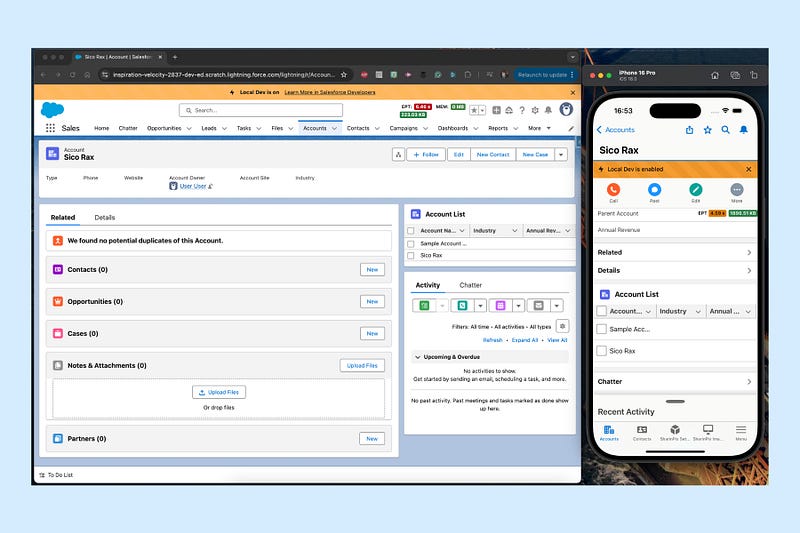
Salesforce has consistently pushed the boundaries of innovation, and one of the most exciting recent developments is the introduction of Local Dev for Lightning Web Components (LWC). Initially announced as a beta at Dreamforce 2024, this feature has taken a significant step forward. Just last week, at TrailblazerDX 2025 (5–6 March 2025), Salesforce announced that Local Dev is moving towards general availability, marking a new era in how developers build, test, and iterate on Salesforce applications. In this article, we’ll dive into what Local Dev offers and how it can transform your development workflow.
What is Local Dev?
Local Dev is a game-changing feature designed to allow Salesforce developers to preview and test Lightning Web Components locally, eliminating the need for constant deployments to a Salesforce org. This feature provides real-time feedback and seamless testing, significantly boosting productivity.
Key Benefits of Local Dev
- Instant Feedback and Real-Time Preview: With Local Dev, developers can see changes instantly as they code. This real-time feedback speeds up testing, enabling developers to spot issues and adjust without deploying to a Salesforce org.
- Faster Iterations and Enhanced Productivity: Local Dev eliminates the lengthy deployment process, enabling developers to test locally and reducing the time spent waiting for updates to sync with a sandbox or production environment.
- Improved Debugging and Error Highlighting: Local Dev includes built-in error detection, highlighting issues as they occur. This rapid troubleshooting reduces potential delays and results in cleaner, error-free code.
- Isolated Component Testing: Developers can test individual components without interference from other application parts, ensuring each component functions as intended before integration.
- Enhanced Collaboration and Team Productivity: Local Dev allows team members to work independently on their own instances, reducing dependencies and streamlining teamwork.
How to Set Up Local Dev
To start using Local Dev, follow these steps:
- Install Salesforce CLI: Ensure you have the latest version of the Salesforce CLI installed.
- Install the Local Dev Plugin: Run the command.
sf plugins install @salesforce/plugin-lightning-dev. - Enable Local Dev: For sandboxes, navigate to Setup and enable it. For scratch orgs, add the
enableLightningPreviewPrefkey to yourproject-scratch-def.jsonfile and set it totrue.

{ "orgName": "local dev enabled org", "edition": "Developer", "features": ["EinsteinVisits", "FieldService:2", "FieldServiceDispatcherUser:2", "FieldServiceMobileUser:2", "MySalesforce"], "adminEmail": "kevan@moothien.me", "settings": { "mobileSettings": { "enableS1EncryptedStoragePref2": false }, "fieldServiceSettings": { "fieldServiceOrgPref": true, "enableWorkOrders": true }, "lightningExperienceSettings": { "enableS1DesktopEnabled": true, "enableLightningPreviewPref": true } } }Launching Local Dev
Once Local Dev is enabled, you can launch it using the Salesforce CLI. Here are some examples of how to start Local Dev for different types of projects:
Lightning Experience App
sf lightning dev app -n "YourApp"Salesforce Mobile App
sf lightning dev app --type mobileExperience Cloud LWR Site:
sf lightning dev site -n "YourSiteName"Preview


Conclusion
The Local Dev feature is a significant leap forward for Salesforce developers, offering a more efficient and streamlined development experience. With its recent announcement at TDX25, moving towards general availability, developers can expect even more powerful tools to deliver seamless and dynamic Salesforce applications. As Local Dev becomes more widely available, it will undoubtedly transform how teams collaborate and innovate within the Salesforce ecosystem.
Thanks for reading.


Leave a Reply